
Guide
How to show live Freemius prices on your WordPress site
Show live Freemius prices on your WordPress site with a block or a shortcode: bound to the Freemius dashboard, refreshed within seconds of a change, and shown in each visitor’s own currency.
Published October 10, 2026 in Guides
If you sell a plugin or theme through Freemius, the prices on your website are a copy of the prices in your Freemius dashboard. This guide shows how to show Freemius prices on your WordPress site as live figures instead: bound to the dashboard, refreshed within seconds of a change, and shown in each visitor’s own currency. It takes about five minutes, most of them in the Freemius dashboard.
Why typed prices go stale, and what live Freemius pricing changes
A price typed into a page is right on the day it is typed and drifts from then on. Change a price in the Freemius dashboard and every pricing page, comparison table, landing page and sentence that quotes it keeps the old figure until somebody opens each one in the editor, retypes it and saves. Miss one and a visitor is reading a price you no longer charge.
Live Freemius pricing removes the copy. The page holds a block or a shortcode, and PlugUpp Live Pricing for Freemius renders whatever the price is now. The plan’s name, its description, its trial and its feature list come from the same place, so a pricing card is written once, in the dashboard, and nowhere else.
Install the plugin from WordPress.org
The plugin is free on WordPress.org, with no account and no licence key. In your WordPress admin, go to Plugins, then Add New Plugin, search for PlugUpp Live Pricing for Freemius, and install and activate it. It needs WordPress 6.3 or later and PHP 7.4 or later.
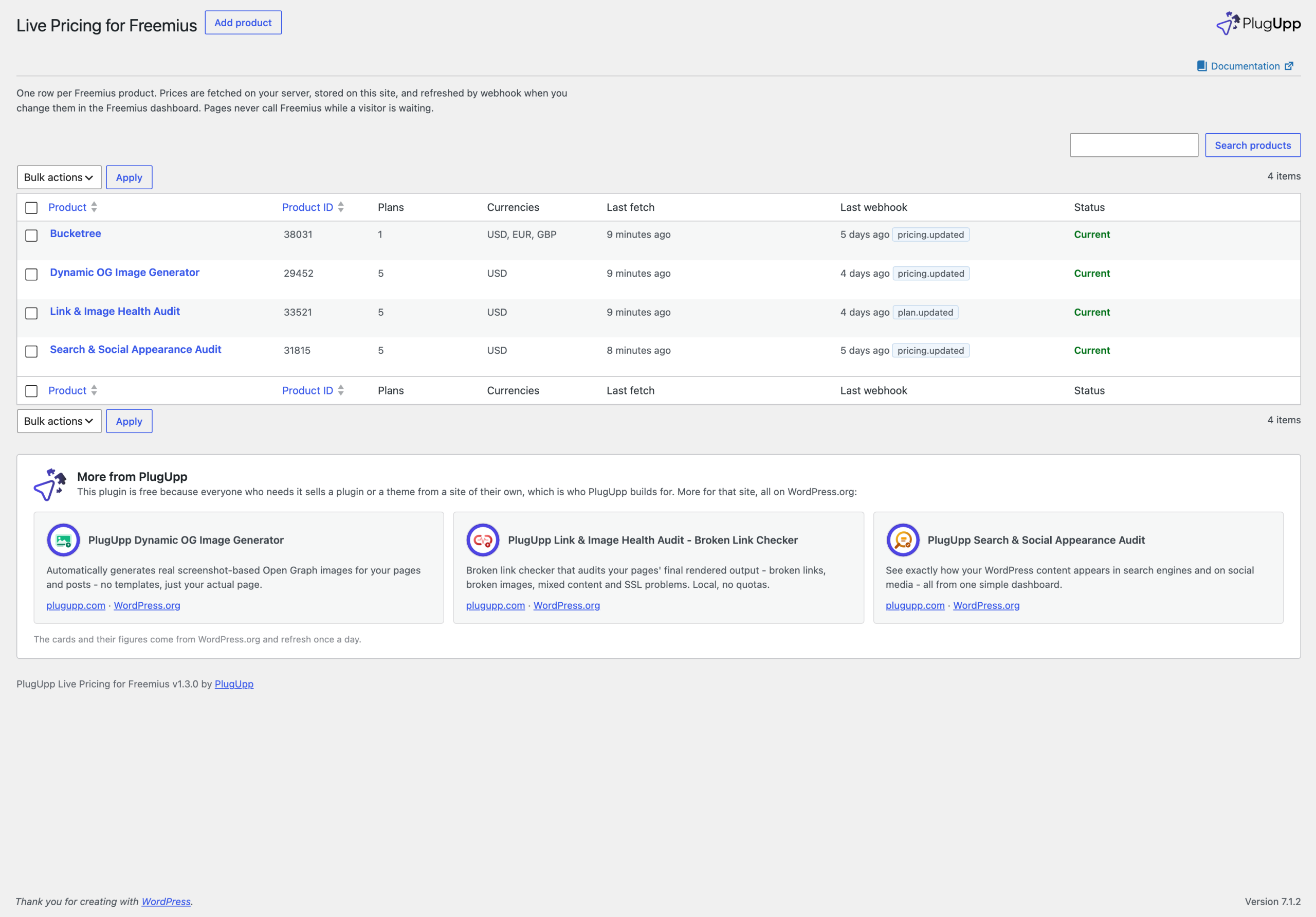
Once it is active, Freemius Pricing appears in the admin menu, with Products, Settings, Appearance and Logs under it. It opens on Products, which is empty until you add your first product.
Connect your Freemius product
You need two things from the Freemius dashboard:
- The product ID. Open the product. The numeric ID is in the URL and at the top of the product’s own pages.
- The API Bearer Authorization Token. Go to Settings, then Keys, and copy the product’s API Bearer Authorization Token. It reads the product’s plans and prices and cannot change them.
Then, on Freemius Pricing, Products, press Add product. Paste the product ID and the token, and press Test token: it reports the product’s name, its plans and how many pricing rows came back, or exactly what Freemius said if the token was refused. Press Add product to save.
That save fetches the prices and the product’s name, reads the product’s secret key with the token, and registers this site’s webhook with Freemius. There is nothing to paste into the Freemius dashboard. The product’s own screen then carries a Status card showing the plans, prices and currencies that came back, the webhook and the last error, if there was one.
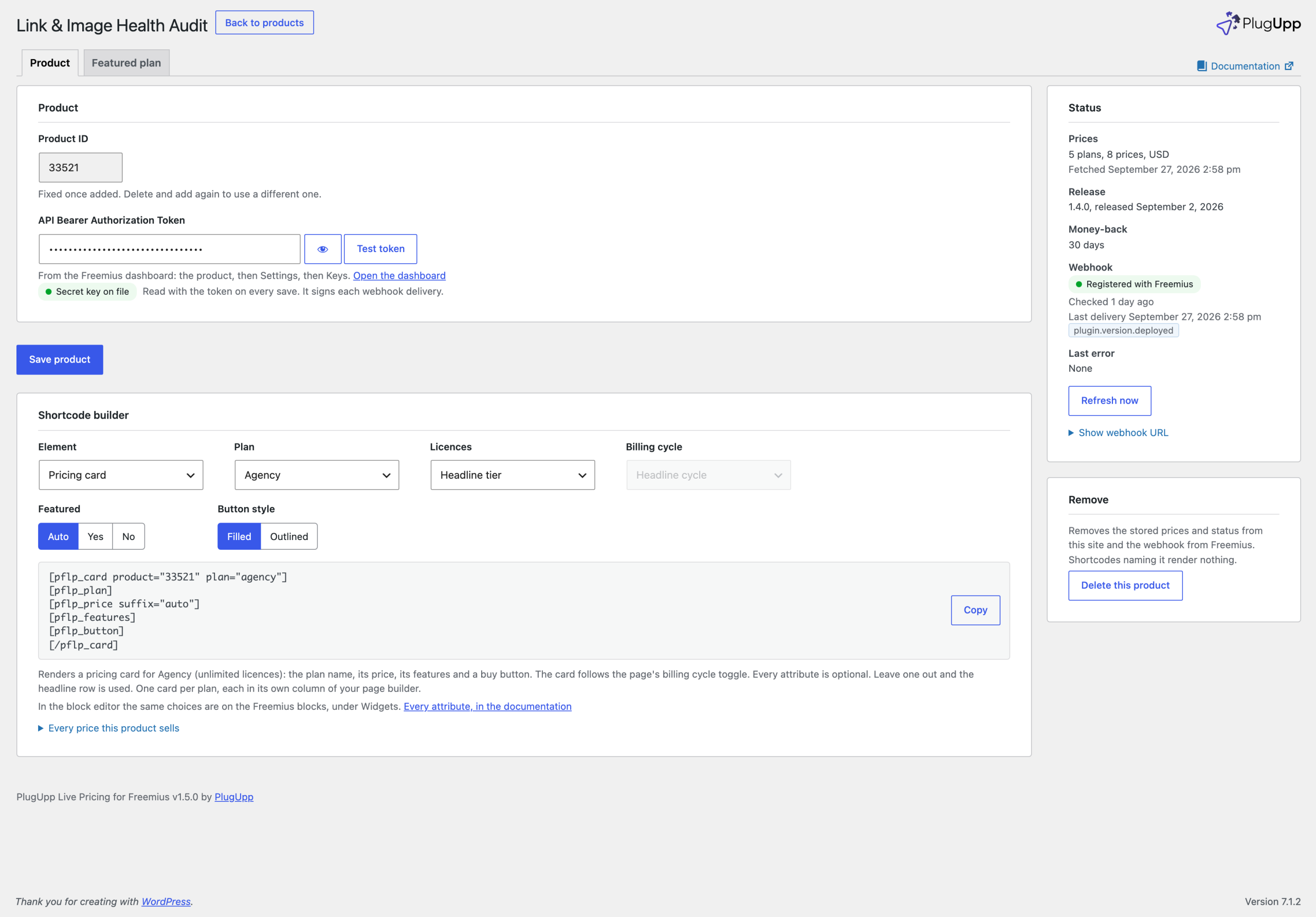
If the webhook chip reads Not enabled by Freemius for this product, Freemius has not yet unlocked webhooks for that product, which it reserves for products that are actively selling. The prices are live all the same, and every later save tries again, so the webhook appears by itself.
Show a Freemius price on a WordPress page
In the block editor, open the inserter and type “Freemius”. The Freemius price block renders your headline price the moment it is inserted, and its sidebar offers only the plans, licence tiers and billing cycles your product actually sells.
Anywhere else, in a page builder, a widget area, the classic editor or a template file, use the shortcode. Every attribute is optional, so the pflp_price shortcode with nothing after it renders your headline price and a bare pflp_button links to the checkout that sells it. To pin a plan, a licence tier and a cycle, name them:
[pflp_price plan="pro" licenses="3" cycle="annual" suffix="auto"]suffix="auto" adds the text after the figure, such as /year or /month, and follows the billing cycle toggle. You do not have to type any of it: the Shortcode builder on the product’s screen writes the shortcode from lists that offer only what the product sells, and the line under it says what it will render.
Build a whole pricing card in one block
Insert the Freemius pricing card block and it arrives holding the plan’s name, its price, its description, its features list and a full-width buy button, every one of them live and every one still its own block. Set the card’s Plan once, in its What this card is about panel, and every block inside it follows.
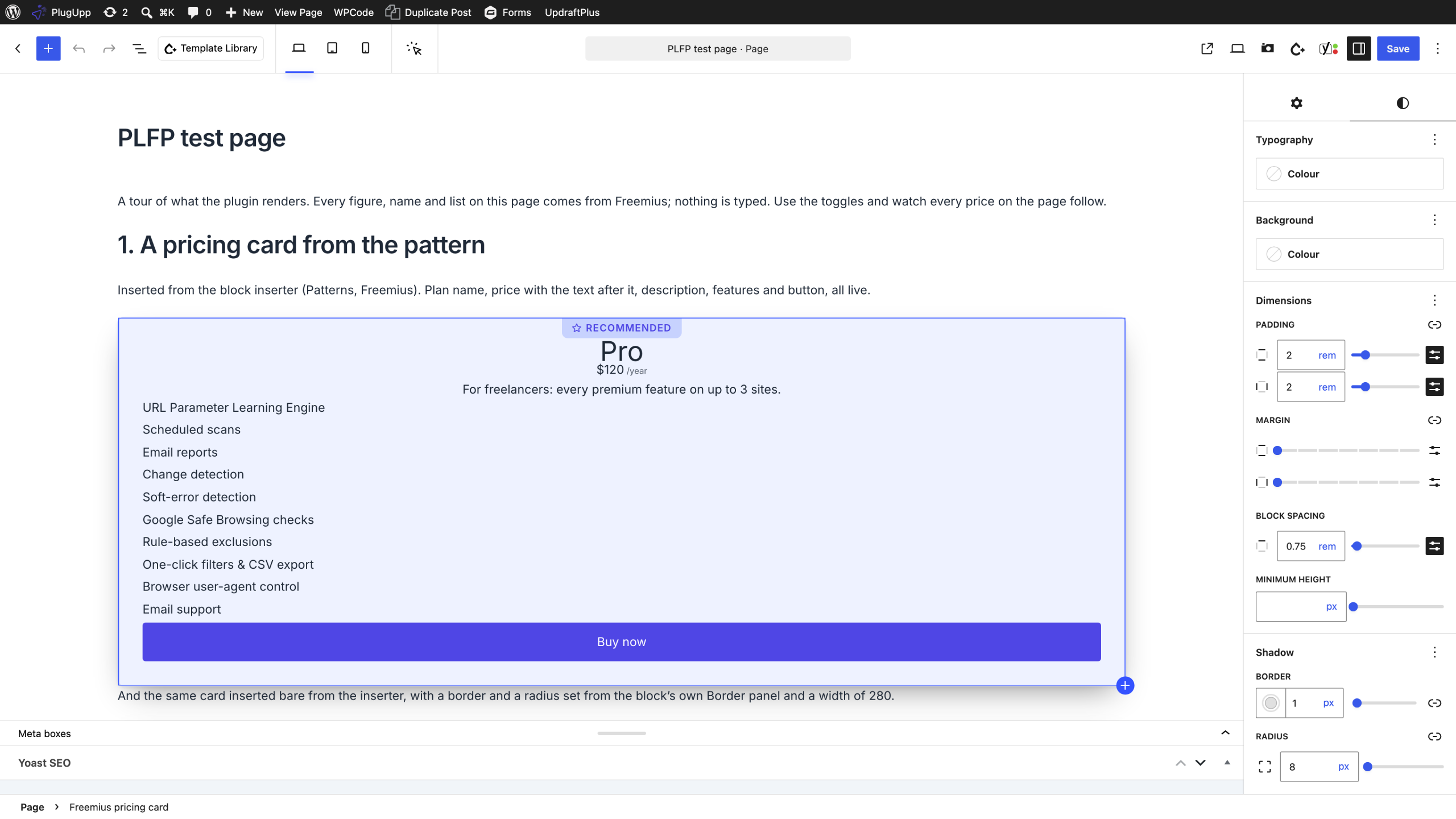
On a page builder or the classic editor, choose Pricing card as the element in the Shortcode builder and it writes the whole card for you:
[pflp_card plan="pro" licenses="3"]
[pflp_plan]
[pflp_price suffix="auto"]
[pflp_features]
[pflp_button]
[/pflp_card]
A row of cards side by side is a pricing table, and A Freemius pricing table for WordPress that never goes stale walks through building one.
Let visitors choose their currency and billing cycle
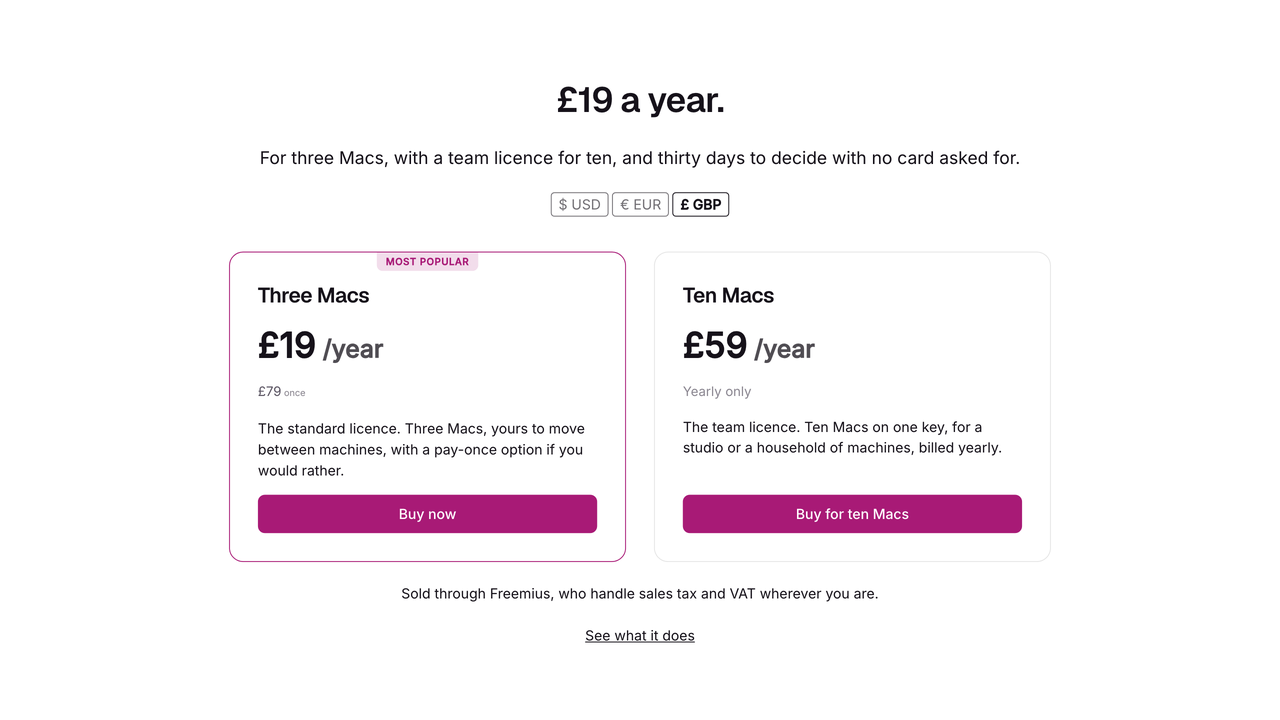
Add the Freemius currency toggle block or the pflp_currency shortcode, and the Freemius billing cycle toggle block or pflp_cycle, once on the page. Pressing either one repaints every price on the page, swaps the text after each figure and rewrites every buy button’s link, with no request back to your site, because the page already holds every currency and every cycle the plans sell.
A visitor starts in the currency they are most likely to pay in: a choice they made earlier, kept in their own browser, then their location, then your default currency. The currencies are the ones the Freemius pricing API returns, USD, EUR and GBP, and a price is never converted. A toggle with only one option renders nothing, and appears by itself when you add a second currency or billing cycle in the Freemius dashboard.
What happens when you change a price in Freemius
With the webhook registered, a price or plan change in the Freemius dashboard reaches your pages within seconds. Nobody has to open the editor or re-save a page. Pages render the copy stored on your own site, so no page ever waits on the Freemius API, and if a refresh fails the last good prices stay on the page while an admin notice tells you. Nothing goes blank and no figure is invented.
Refresh after on the Settings screen is the backstop for a webhook that never arrived: it sets how stale the stored prices may get before a page view schedules a background refresh, 15 minutes to start with. To see it work, change a price in the Freemius dashboard and reload your page within half a minute.
Live Freemius prices behind a page cache or CDN
Every price is written into the page in every currency and every billing cycle it sells, and the visitor’s browser chooses which one to show. A page cache, a CDN or a static export therefore cannot serve one visitor’s currency to another, because every copy of the page holds every currency. Your server never learns a visitor’s currency or location, and the figure a crawler sees is your default currency.

About the plugin
Live Pricing for Freemius
Freemius pricing, live on your own pages with blocks or shortcodes, in each visitor’s currency, refreshed so it never goes stale.
Blocks and shortcodes
Refreshed in seconds
Each visitor’s currency
Free on WordPress.org
