
Guide
A Freemius pricing table for WordPress that never goes stale
Build a Freemius pricing table for WordPress from live pricing cards, so every price, plan name, feature, yearly saving and buy button follows the Freemius dashboard instead of a typed figure.
Published October 10, 2026 in Guides
A pricing table is the page a buyer reads most carefully, and it is usually the one built from typed figures. This guide builds a Freemius pricing table for WordPress from live pricing cards instead, so every price, plan name, feature and buy button on it follows your Freemius dashboard. If the plugin is not set up yet, start with How to show live Freemius prices on your WordPress site, which covers installing it and connecting your product.
Why a pricing table built from typed figures drifts
A typed pricing table holds a figure for every plan, licence tier, billing cycle and currency, plus each plan’s name, description and feature list. Every one of those is a copy of something the Freemius dashboard already holds. Change one price, rename a plan or add a feature and the table is wrong until someone finds every cell that quotes it.
The saving on a yearly option is the easiest copy to miss. It is arithmetic on two prices, so it goes stale when either of them moves, and nothing on the page looks wrong.
What live means for a Freemius pricing table
Live means bound to the dashboard. PlugUpp Live Pricing for Freemius fetches the product’s plans, prices and text from the Freemius API on your server, stores them on your site, and refetches within seconds of a change through a webhook it registers itself. The table holds blocks rather than figures: each plan’s name, price, description, features and buy button are rendered from the stored copy every time the page is served.
Pages read the stored copy, so the table never waits on an API call, and if a refresh ever fails the last good prices stay in place.
Build the Freemius pricing table from pricing cards
Each column of the table is one Freemius pricing card. In the block editor:
- Add a Columns or Grid block with one column per plan.
- Insert a Freemius pricing card into each column. It arrives holding the plan name, the price with the text after it, the description, the features list and a full-width buy button.
- Select each card and choose its Plan, and a Licences tier if you sell several, in the What this card is about panel. Everything inside the card follows the card.
A three-card table is three choices rather than fifteen. The billing cycle and the currency are deliberately not set on a card: they belong to the visitor’s toggles, so every card moves when a toggle does.
On a page builder or the classic editor, the pflp_card shortcode is the same card, and the Shortcode builder on the product’s screen writes it for you. One shortcode is one card, so put each in its own column of your page builder:
[pflp_card plan="pro" licenses="3"]
[pflp_plan]
[pflp_price suffix="auto"]
[pflp_features]
[pflp_button]
[/pflp_card]
A free tier can sit in the same row. The card’s Plan list offers your free plan too, so its name, description and features are live like the rest; give it an ordinary button linking to your download page in place of the buy button.
Let the featured plan mark itself
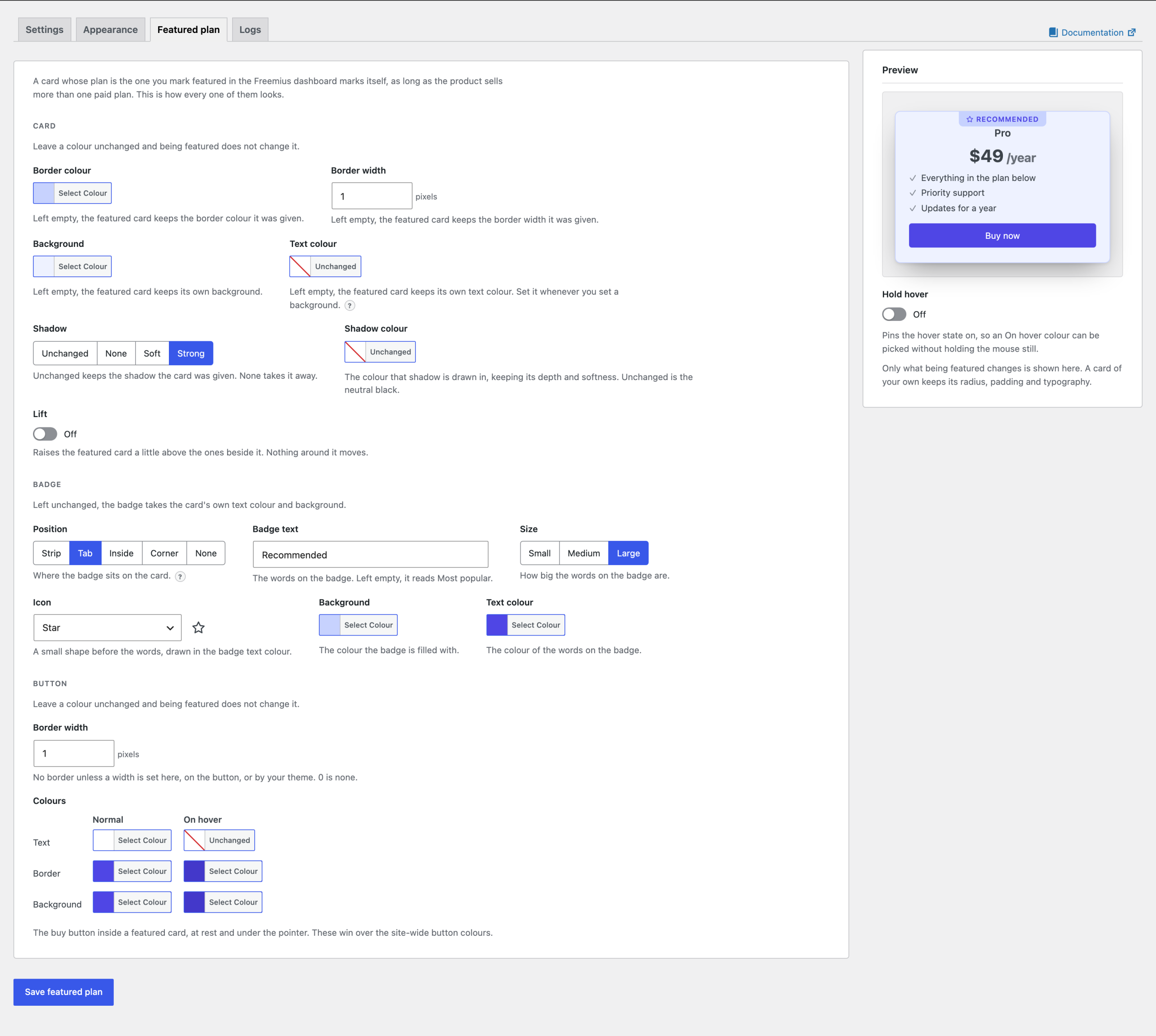
Mark one plan as featured in the Freemius dashboard and its card marks itself, with a badge, a border, a background and a shadow. How a featured card looks is set once, on the Featured plan tab under Freemius Pricing, Settings, beside a live card that redraws as you change it.
A card’s Featured setting has three answers: Automatic: follow Freemius, the default; Always highlight this card; and Never highlight this card. Automatic follows Freemius’s own rule: the featured plan’s card marks itself as long as the product sells more than one paid plan.
Show the yearly saving, computed from your prices
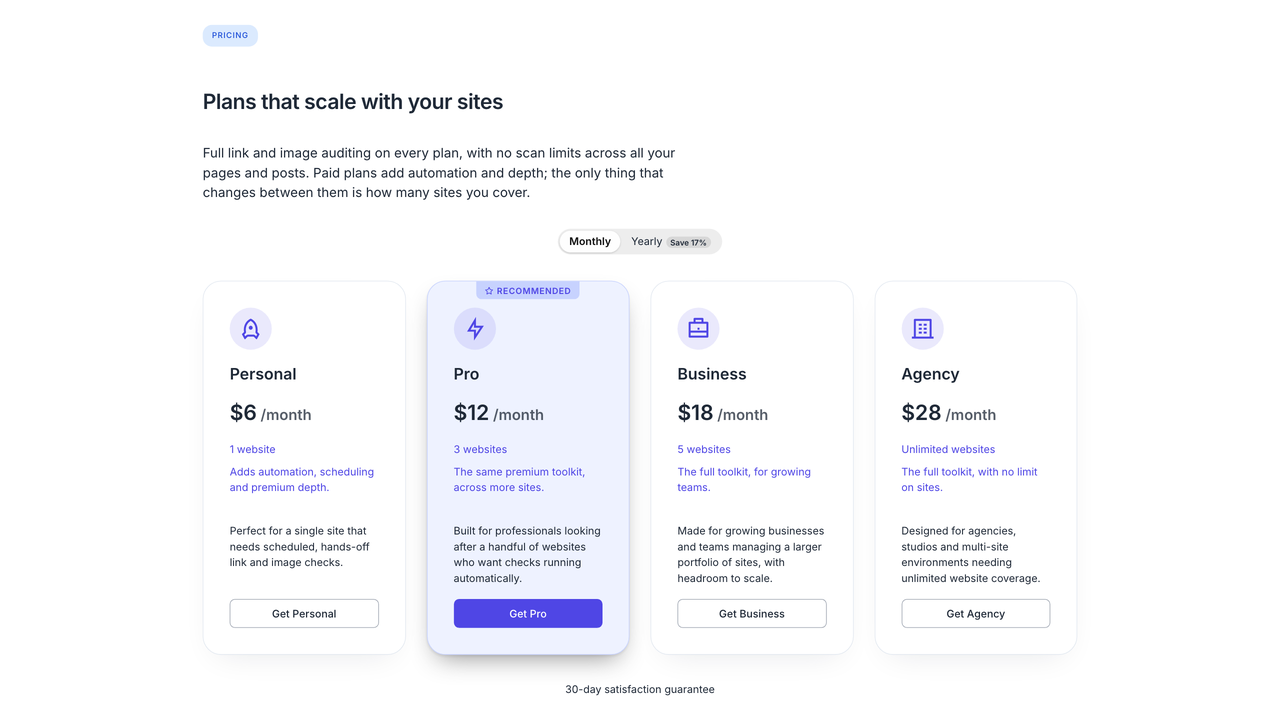
The billing cycle toggle can carry what a year saves against twelve months on its yearly option. Turn on Show the saving on the yearly option in the toggle’s Saving badge panel, or give the pflp_cycle shortcode badge="1". The figure is computed from the stored prices, never typed, so a price change in the dashboard moves the badge with the figures.
It appears only when your headline tier sells both a month and a year and the year is actually cheaper, so it never claims a saving that is not there. The words are yours to set, and badge_text="{percent} cheaper" puts the figure where you want it.
Prices in each visitor’s own currency
Add a Freemius currency toggle above the table. Every price in the table carries all of its currencies, and the visitor’s browser shows one: their own earlier choice, then their location, then your default currency. The swap happens in the browser, so a page cache or a CDN serves the same page to everyone and still shows each visitor their own currency.
Buy buttons that go straight to the Freemius checkout
The buy button in each card is an ordinary link to your Freemius hosted checkout, for the same plan, licence tier and billing cycle the card shows. Press the billing cycle toggle and its link is rewritten; press the currency toggle and the visitor’s currency is added to it, so the checkout opens in the currency they were reading. It is built the way WordPress builds its own Button block, so your theme’s button styling applies, as Filled or Outlined. One setting, Checkout, opens the Freemius checkout over your own page instead.
Built this way, the pricing table needs no edit when a price changes. The next change you make in the Freemius dashboard is the next thing your visitors see.

About the plugin
Live Pricing for Freemius
Freemius pricing, live on your own pages with blocks or shortcodes, in each visitor’s currency, refreshed so it never goes stale.
Blocks and shortcodes
Refreshed in seconds
Each visitor’s currency
Free on WordPress.org
